
Conditional Fields
With the Conditional Fields macro, you can specify different conditions to customize the form. This is useful for creating dynamic forms that react to user input.
Hide and Show Conditions
The Conditional Field macro does not support the use of single or double quotes ( ' or ") in the Field Value input box or in field names selected for the Field or Target parameter for conditions.
Go to Page Condition
The Go to Page and Finish actions can be used only within a form with multiple pages. These two actions don't appear if the form doesn't contain additional pages.
The Go to Page action skips to a particular form page if the condition is matched. This is useful when the user does not need to fill in the details of specific pages during the process. In the following example, we want the user to skip the Company Details section if they're a freelancer:
For that example, you would input the following condition: 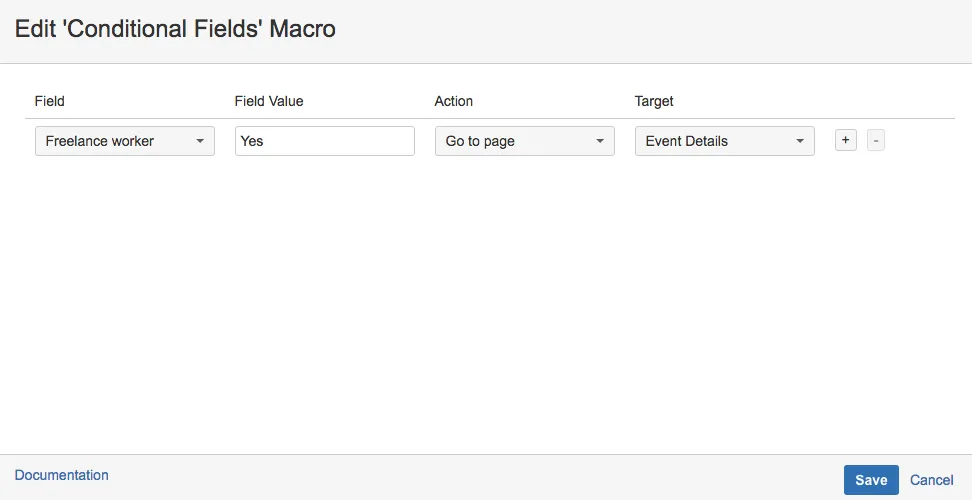
If a user is a freelance worker, they don't need to fill in the fields of the Company Details section.
When they reply Yes to the question " Are you a freelance worker?" and click the Next button to move on, the user is jumped directly to the Event Details page without the need to fill in the Company Details page.
Finish Condition
The Finish action permits the submission of data without completing all the pages of a form. This is useful if users do not need to go through the whole process of a form submission. In the following example, we don't want the user to have to continue to fill all the pages and submit the data when they're not going to attend the event:
For that example, you would input the following condition:
When the user replies No to the question " Are you going to attend the event required? " the Next button is transformed into a Submit button, and by clicking it, all the details get submitted.
If the user replies Yes, the Next button remains, continuing the process.