
Rovo Integration
Learn how to use Atlassian Rovo within ScriptRunner for Jira Cloud to write scripts, answer ScriptRunner questions, and improve your Jira automations.
- Select Ask Agent on any ScriptRunner screen:
- Select the Agent button on any code editor, and then select Open Agent:Note: You can also select Explain this script or Use script as context here when there is a script in the editor. Learn more in a following section.
Ask questions about ScriptRunner for Jira Cloud
Create, update, or delete listeners, scheduled jobs, escalation services, scriptfied fields, behaviours, workflow rules, and Script Manager files.
Example actions and questions for Rovo
- Write an Enhanced Search query to find unresolved work items that are blocked by open work items
- Create a behaviour that looks up a user through the Jira REST API and fills in the assignee on the create screen
- Create a paragraph scripted field that shows a table of work item data
- Is there a place in this script to use HAPI? (Make sure to include a script in the question.)
Learn more about how to prompt Rovo from Atlassian.
Use Rovo on a specific script
When you select the agent button on a code editor, you can select two options for help with a script that is populated in the editor: Explain this script and Use script as context
After selecting Explain this script, Rovo opens on the right-hand side of your screen and runs an analysis of the script. When it finishes, it sends a detailed report of what the script is and how it works. For example, you can receive a Summary of Functionality, Inputs (like APIs and URLs), Jira Effects (like Field Mapping and Issue Creation), Control Flow (like Data Parsing and Time Calculation), and Risks and Considerations (like Error Handling and Rate Limiting warnings). You also get example follow-up prompts you can send the agent.
After selecting Use script as context, Rovo opens on the right-hand side of your screen with the script loaded, waiting for further instructions. You receive follow-up prompts you can send the agent to get started.
Restricting the Rovo agent
Atlassian currently gives administrators limited controls over app agents, and there's no way to remove one from a site. We have submitted feedback to Atlassian asking for better controls.
Open Rovo Studio.
Select Agents in the left sidebar.
Find the ScriptRunner agent, and then select Edit Agent.
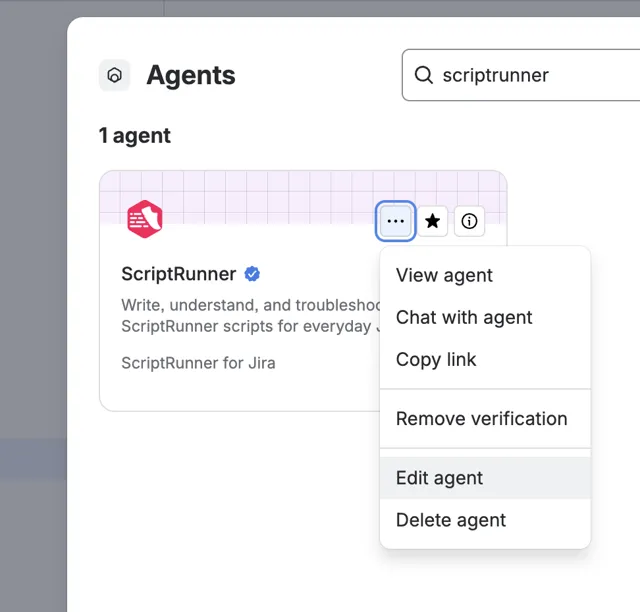
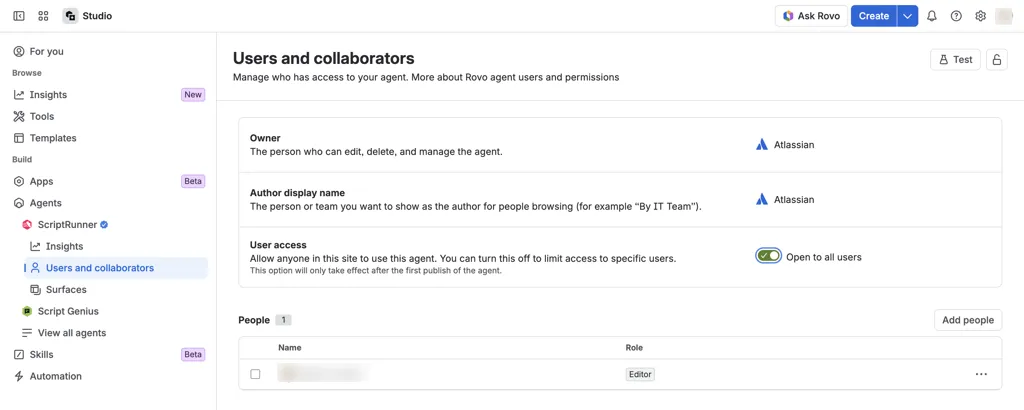
- Under Users and Collaborators, select Add people, and then add one user.Tip: We recommend setting this to an administrator.
Turn off Open to all users under User Access.
Use a different AI agent
If you want to use your own agent, please refer to Connect AI Agents to ScriptRunner for Jira Cloud with MCP.