
Connect AI Agents to ScriptRunner for Jira Cloud with MCP
Connect AI agents such as Claude Code, Codex and ChatGPT to ScriptRunner for Jira Cloud using the Model Context Protocol (MCP).
Want your AI agent to help with ScriptRunner? With our Model Context Protocol (MCP) server, agents like Claude Code, Codex, and ChatGPT can work with ScriptRunner for Jira Cloud on your behalf. They can look through your setup, build and update configuration for you, and help work out why a script didn't behave.
Setup takes a few minutes. You'll need to be a Jira administrator, and an organisation or site admin needs to switch MCP tools on once for your site.
Step 1: Turn on MCP tools
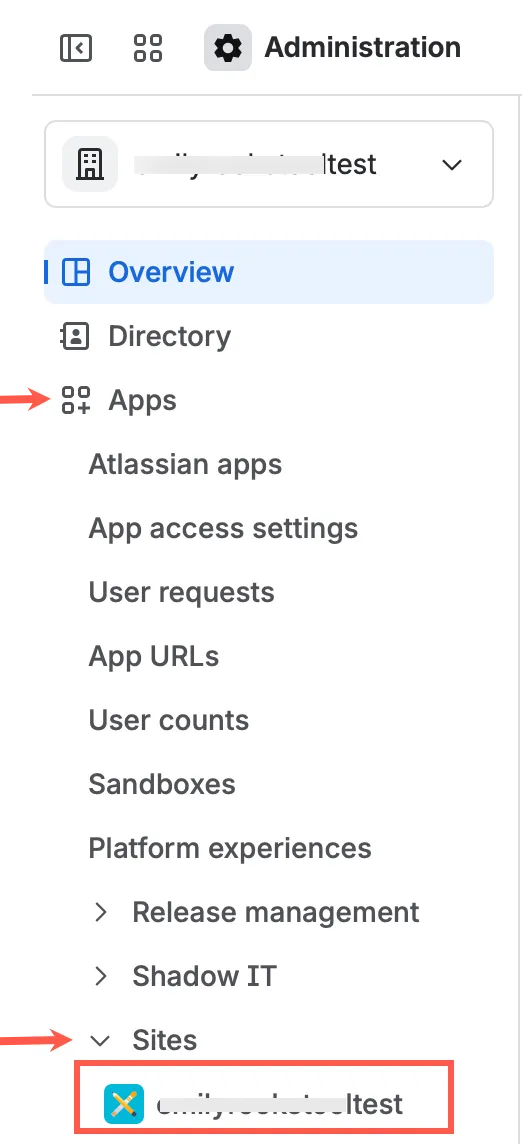
Go to https://admin.atlassian.com and pick your site once signed in.
Select and pick your site.
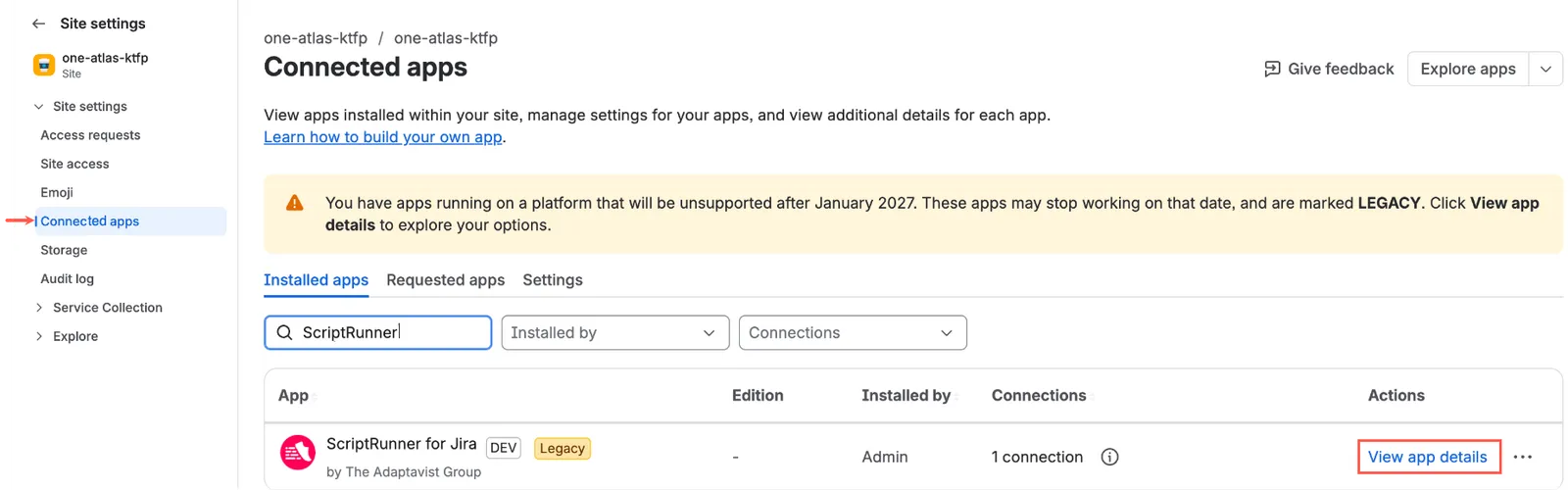
Select Connected apps.
Find ScriptRunner for Jira, and then select View app details.
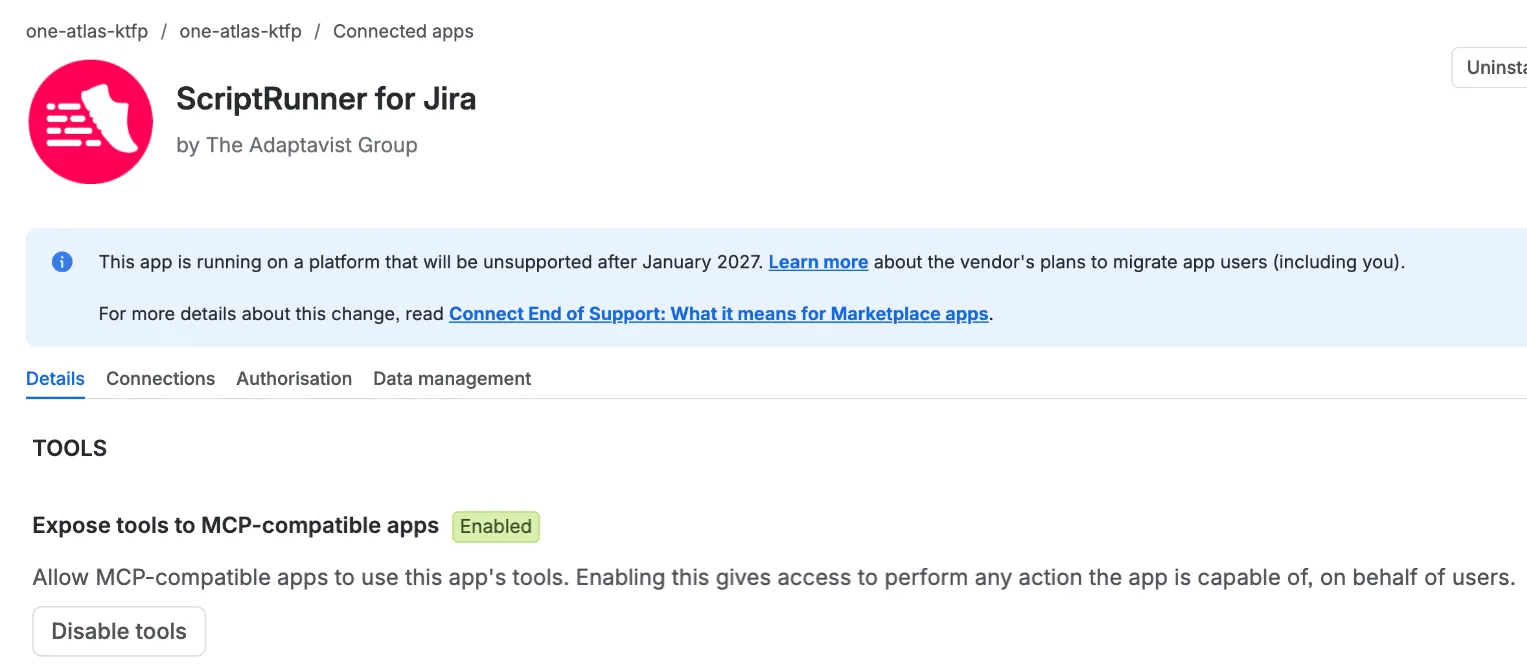
On the Details tab, scroll to the bottom and under Expose tools to MCP-compatible apps, select Enable tools.
Step 2: Connect your agent
Copy the MCP server URL: https://mcp.atlassian.com/forge/1dd33d5a-4685-4816-9851-1b36b2fb3dbd
- Optional: Connect Claude Code.
- Run this command:
claude mcp add --transport http scriptrunner https://mcp.atlassian.com/forge/1dd33d5a-4685-4816-9851-1b36b2fb3dbd Run
/mcpand select Authenticate.
- Optional: Connect Codex.
- Run these two commands:
codex mcp add scriptrunner --url https://mcp.atlassian.com/forge/1dd33d5a-4685-4816-9851-1b36b2fb3dbd
codex mcp login scriptrunner
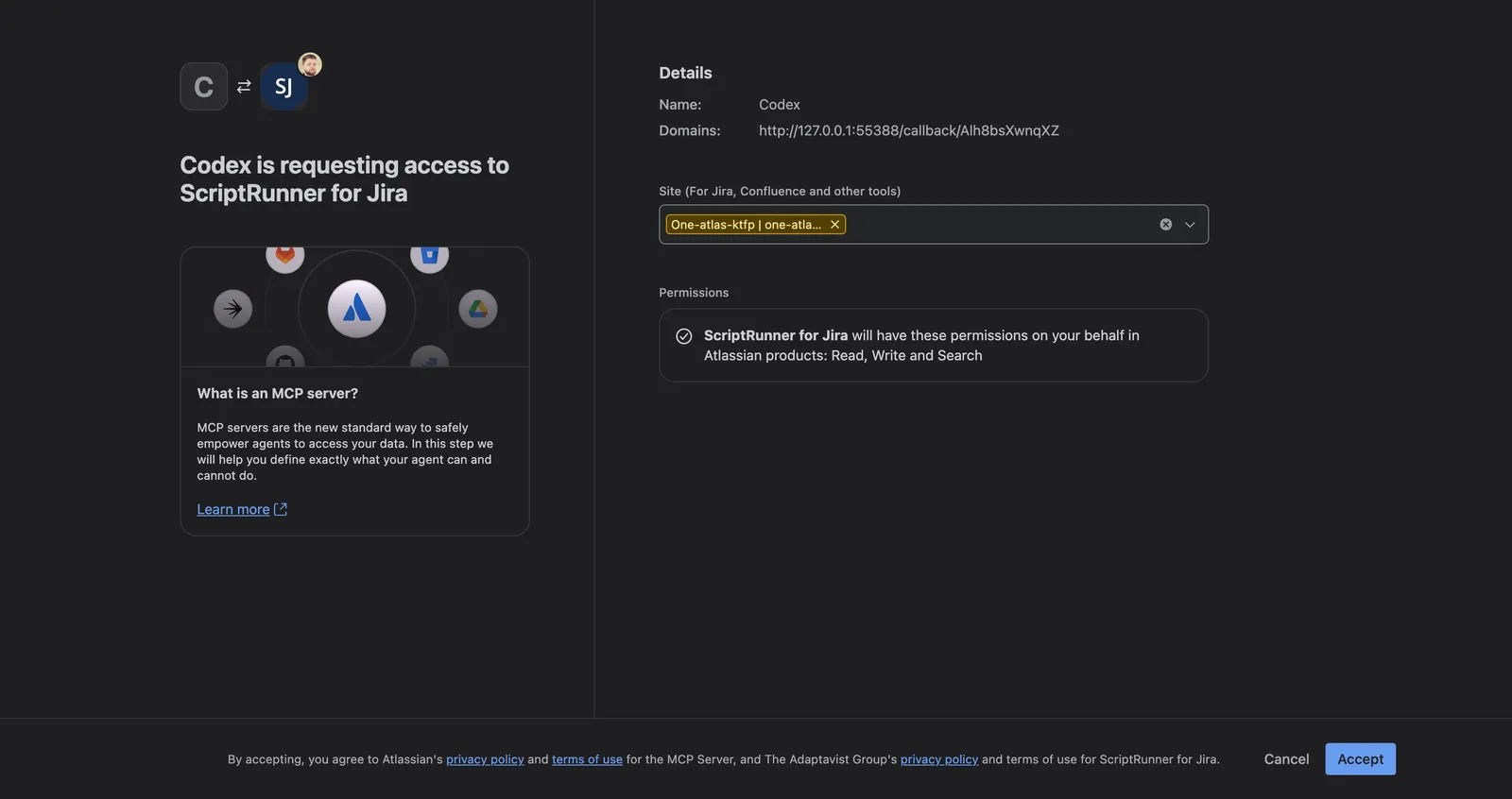
Prompted by your browser, sign in with your Atlassian account.
Pick your site, and then select Accept.
Install ScriptRunner skills
npx skills add adaptavist/scriptrunner-skillsWhat your agent can do
| Tool | What it does |
|---|---|
sr-explore-config | Lets your agent read your existing listeners, scheduled jobs, escalation services, scripted fields, and behaviours, so it understands your current setup. |
sr-apply-config-changeCHANGES DATA | Creates, updates, or deletes any of those. |
sr-list-behaviour-fields | Finds the create screen fields a behaviour can use. |
sr-list-script-variables | Lets your agent see which Script Variables you have, so it can use them in scripts. It only ever sees the names. Values are never returned to the agent, so your secrets stay safe. |
sr-test-scripted-fieldRUNS A SCRIPT | Tries out a scripted field on one work item, without saving anything. |
sr-explore-workflows | Lets your agent read your existing workflows, including their ScriptRunner conditions, validators, and post functions. |
sr-change-workflow-ruleCHANGES DATA | Creates, updates, enables, disables, moves, or deletes a workflow rule. |
sr-explore-script-manager | Browses and reads your Script Manager files. |
sr-change-script-manager-fileCHANGES DATA | Creates, updates, moves, renames, or deletes a Script Manager file. |
sr-list-executions | Shows recent runs of a configuration. |
sr-read-execution-logs | Reads the logs from a run, handy for figuring out what went wrong. |
sr-search-hapi, sr-get-hapi | Look things up in the ScriptRunner HAPI API. |
sr-explore-rest-api | Looks things up in the Atlassian REST API specifications. |
sr-check-agent-access | Helps sort out access problems. |
Good to know
Your agent works as you, with your Jira permissions, and its changes go live straight away. Trying something new? A test site is a great place to start.
MCP changes don't appear in the ScriptRunner audit log yet, so use your agent's history to see what it changed.
If your agent connects but can't find any ScriptRunner tools, or says an admin must enable external MCP access for this app, MCP tools haven't been turned on for your site yet. Ask an admin to complete Step 1.
For now, MCP is available for ScriptRunner for Jira Cloud only. Script fragments, the Script Console, and built-in scripts aren't supported yet.
Want to dig deeper? Check out the MCP specification and the ScriptRunner skills.