
Script Manager
The Script Manager allows saved scripts and folders to be directly managed from the ScriptRunner front end.
What is the Script Manager?
The Script Manager feature in ScriptRunner for Confluence Cloud allows you to manage saved .groovy scripts and folders directly from the ScriptRunner front-end. It enables you to create, edit, save, delete, and rename scripts and folders within your instance without relying on FTP services or server administrators.
With Script Manager, you can easily reuse and organize scripts in any of the Groovy code editors across your instance, making script management more efficient and accessible.
For example, if you had the same conditional code across multiple scripts and needed to update that condition, you previously had to make the change in several places. With Script Manager, you can write the code once and reuse it wherever needed. When it's time to update it, you modify it in one place, and the change is automatically reflected across all occurrences.
Create scripts and folders
Add a new script
To add a new script:
Edit existing scripts
To edit saved .groovy scripts:
Delete scripts and folders
To delete .groovy script files and folders:
- Navigate to ScriptRunner > Script Manager.
- Right click the script file or folder you want to delete.
- Click Delete from the pop-up menu.
- When a folder is deleted, all script files within it are also deleted, and it will be unavailable for reuse in all Groovy code editors.
- If a script stored in Script Manager is used by another ScriptRunner feature, such as a Script Listener or Script Job, and the script is deleted from Script Manager, the dependent feature will fail to run.
- Error logs will indicate that a file cannot be found. These logs reference the script's UUID, which does not directly indicate the original file path.
How to reuse scripts
You can reuse scripts saved in Script Manager in any of the Groovy code editors within ScriptRunner for Confluence Cloud. This includes:
As an example, let's choose to create a new Script Job.
- Optional: Modify the saved script if necessary, as follows: Tip: Check where your scripts are used
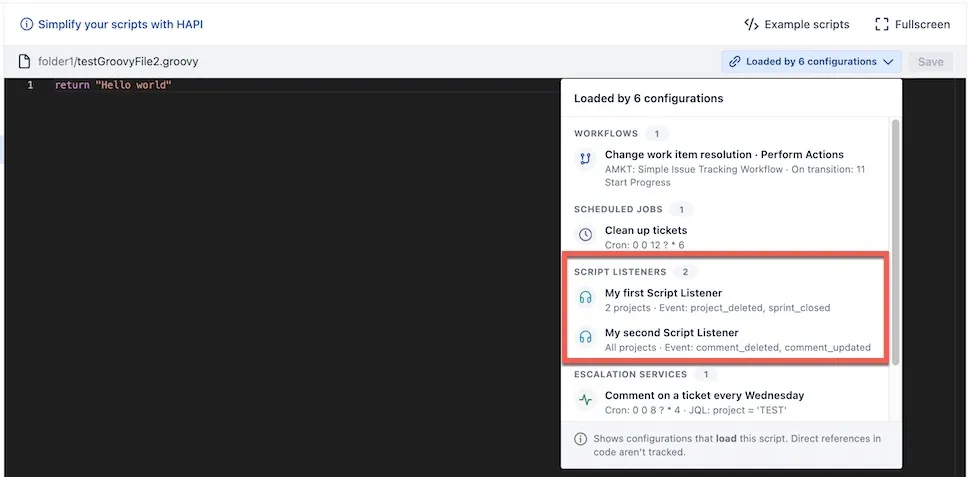
In Script Manager, you can view your saved script files and identify exactly where they are configured in your ScriptRunner for Jira Cloud instance. This includes details on the location and number of configurations where your scripts are loaded.
For example, say you have a file that you set up to be loaded within the configuration of two Script Listeners, you can review that file's usage details. Click the Script Usage drop-down list, and a summary of all configurations loading that script displays. Scroll through the feature categories showing where that file is in use and choose the Script Listeners, as shown below:
Reuse scripts by importing reusable Groovy code
You can import reusable .groovy code into existing or new scripts, and you can create .groovy classes or scripts to organise shared logic. This allows you to structure your code into classes and packages, and to import scripts directly where needed.
ScriptRunner leverages Groovy's program structure, which allows for importing and reusing code from classes and scripts. ScriptRunner treats the code stored in Script Manager as a .groovy codebase, and all Groovy scripts in ScriptRunner have contextual awareness of the code in Script Manager. This means that if you are writing the same function for two Script Listeners and duplicating the code in both places, you can instead place that logic in a utility script or class in Script Manager, then import and reuse it wherever you need it.
Example of code reuse using classes
LinkUtils.groovy
package utils - In Groovy, a package reflects the parent folder structure of the code's location. The package helps Groovy identify a class, and you need to reference it when importing code into your scripts. For example, you can see how we imported the code for reuse using the following statement: import utils.LinksUtils
PrintFormatter.groovy in the Script Manager codebase screenshot above, you cannot import and reuse that code in other scripts or classes that belong to named packages.Example of code reuse using scripts
Groovy also allows us to import and reuse scripts without the need to declare classes. There are multiple options for doing this.
reusablescript.groovy
A simple Groovy script that defines a method that takes an argument called name and returns a greeting.
package com.myapp.simplescripts

println "Script loaded!"
def greet(name) { "Hello, $name!" }
Importing and reusing a part of the script:
import com.myapp.simplescripts.reusablescript

def script = new reusablescript()
script.greet('Admin')The package path must match your directory structure: com/myapp/simplescripts/reusablescript.groovy. You will need to provide the package structure when organizing scripts for reuse via imports. The original bolding that was applied to this entire note was dropped during conversion. Watch for other instances of missing bold that you may want to restore.
You can call specific methods declared in the script, or you can use Run to run the entire script. Using a script works similarly to using a class because, in the background, each .groovy file automatically becomes a class you can instantiate.