
Markdown
Instructions for the Markdown macro.
The Markdown macro lets you use Markdown to format Confluence pages as needed. You can use this macro to insert your own Markdown inline tags or to render them from a URL.
The Markdown macro supports migrated content from ScriptRunner for Confluence DC to our Cloud-based app
Use the Markdown Macro
- Click or type to insert an element and select Markdown.
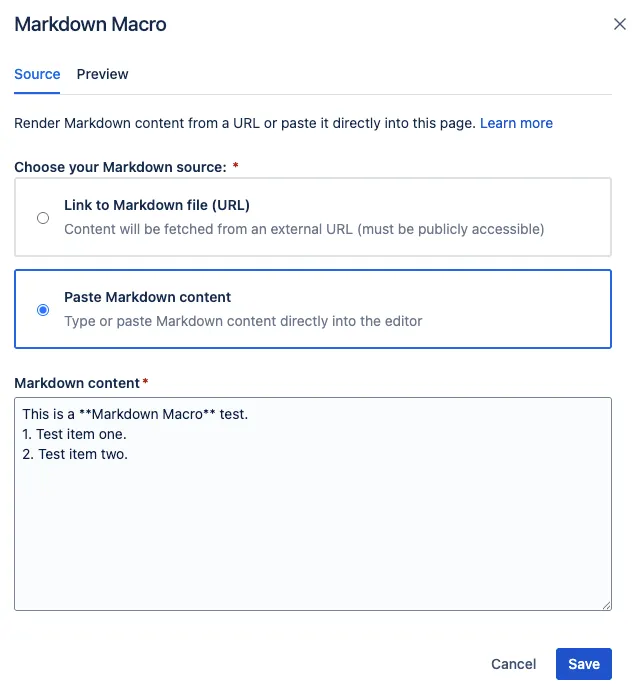
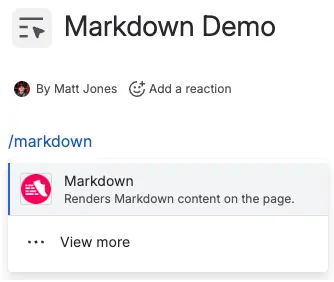 The Insert Markdown dialog opens.
 - Select Link to a Markdown file to fetch content from an external URL or Paste Markdown content, to type or paste directly into the macro.
 Warning: Link to a Markdown file requirements and limitations
Before adding a URL to the Markdown Macro, be sure to consult the documentation below on the requirements and limitations.
Link to a markdown file
Usually, you would want to include Markdown from a Gist or a repository in GitHub or Bitbucket. In GitHub and Bitbucket, use the raw content URL to link to the original Markdown file.
If you want to display Markdown from another Atlassian product (such as Bitbucket Server), the macro automatically detects whether you have an application link configured for the URL you entered and uses it to retrieve the content. If you place Markdown in the body of the macro and you provide a URL, the Markdown in the body of the macro will be ignored.
The Link to Markdown file option only works with publicly accessible URLs that don't require authentication and meet the requirements below.
Requirements
Markdown files loaded from a URL must meet these requirements:
- The URL must use
httporhttps. - The URL must not contain embedded credentials.
- The URL must resolve to a public internet address.
- The URL must return a successful
2xxresponse. - Redirects are not followed, so the URL must point directly to the Markdown file.
- The response must use one of these content types:
text/plaintext/markdowntext/x-markdownapplication/markdownapplication/x-markdown
- The response body must be 1 MB or smaller.
- The remote server must respond within the request timeout.
If the URL cannot be fetched, the macro displays a generic fetch error.
Limitations
The Markdown macro does not support:
file://URLs- FTP, SFTP, or FTPS URLs
- Localhost URLs
- Private network or intranet URLs
- URLs that require authentication
- URLs that only work when viewed in a browser session
- Repository webpage URLs that return HTML instead of raw Markdown.
The character limit for a Markdown macro is 9000 characters. If more characters are entered, the macro configuration will not save.
As a workaround, you can use multiple macros to contain your desired content.
Edit the Markdown Macro
To edit the Markdown macro:
- View the page with the previously created macro in Edit mode.
- Click the Markdown macro settings and select Edit.
- Make your desired changes and click Save.
Supported markdown in the editor
| Format | Markdown shortcut |
|---|---|
| Bold | **Bold** |
| Italic | *Italic* |
| Strikethrough | ~~Strikethrough~~ |
| Code | `Code` |
| Heading 1 | #Space |
| Heading 2 | ##Space |
| Heading 3 | ###Space |
| Heading 4 | ####Space |
| Heading 5 | #####Space |
| Heading 6 | ######Space |
| Numbered list |
|
| Bulleted list | *Space |
| Quote | >Space |
| Code snippet | ```Space |
| Divider | ---Space |
| Link |
|
| Action item | []Space |
| Decision | <>Space |