
CQL Search
Instructions for the CQL Search macro.
Add the CQL Search macro to a Confluence page. If you provide the CQL query, the macro executes the search and returns the results as links to pages. This macro is useful for showing the results of complex queries on pages, labels, and other Confluence content.
To use this macro, follow these steps:
Open the Confluence page you want to use in edit mode.
Select Insert and then Other Macros.
When you search CQL in the search bar, CQL Search appears. Select it.
Enter the CQL statement you wnat to seach in CQL and how many results you want to see in Max results.
Select Preview to preview the query.
Select Save to complete the macro.
Example
- Open the Meetings Guide page in the New Starter Guide space.
- Seach for the CQL Search macro from the Other Macros menu.
- Enter the CQL query. Since we want to include every page in the space, we use the CQL query
space = meeting. - Choose Max results up to 50.
- You can see how many results to expect in the CQL field after entering a valid query.
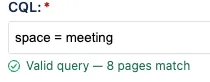
- You can see how many results to expect in the CQL field after entering a valid query.
- Click Save
In edit mode, the CQL Search macro looks like this:
Once you Publish or Save the page, it looks like this:
Note the Prev and Next buttons to navigate the results.