
Version History
The Version History macro makes it easy to display versioning information about any page in a list.
Use the Version History macro
- Use the Insert functionality to select the Version History macro.
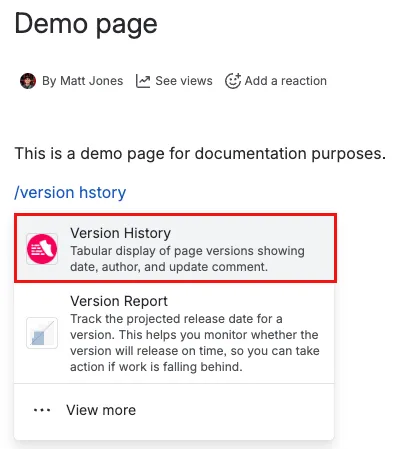 The Insert Version History dialog opens.
- Complete the desired fields.
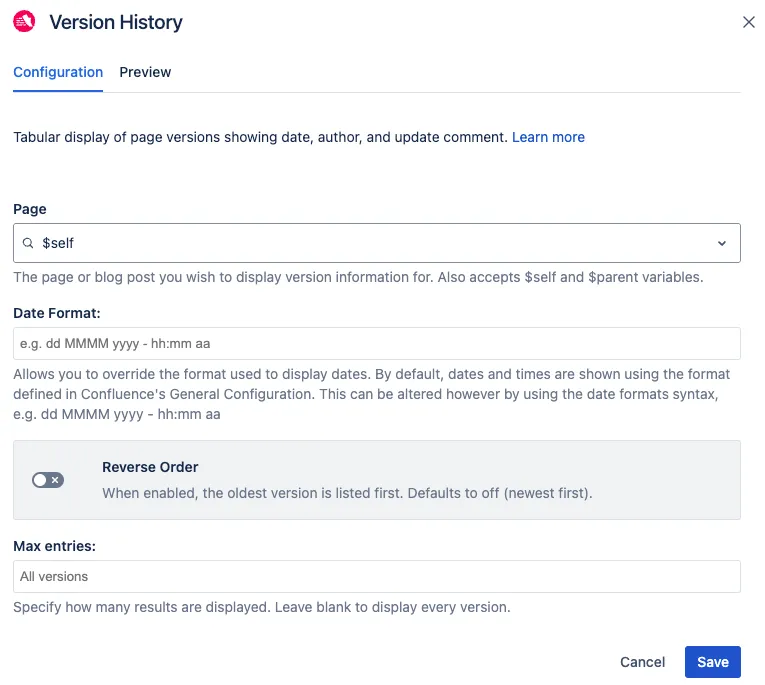
- Page: Specify the page or blog post name for which version history information is displayed. The variables $self (the default) and $parent are accepted.
- Date Format: Specify the format in which the date is displayed. For example, DD MM YYYY - hh:mm aa. The default is MMM dd, yyyy hh:mm.
- Reverse Order: Display the version history list in reverse order.
- Max entries: Specify how many results are displayed. Leave blank to display all versions or specify as desired.