Copy Space
Instructions for using the Copy Space built-in script.
Using Copy Space, you can make a complete copy of an existing space.
The following data is automatically copied:
All pages and blogs
Space description
Space templates
The following data is optionally copied:
Attachments
Labels
Previously, you could choose to copy the permissions of a space if you had a paid version of Confluence Cloud. This is no longer supported, so we removed the option to copy permissions. When you copy a space, default permissions are always applied.
- Permissions
Page likes
Comment likes
To use this script, follow these steps:
- Select the Space you wish to copy.
- Add a unique New Space Key.
- Specify your New Space Name.
- Select if you want to copy accross Attachments and/or Labels with the checkbox next to those options.
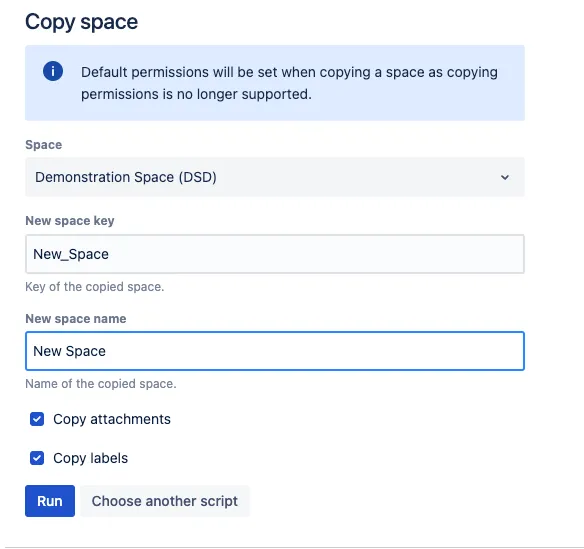
- Click Run.
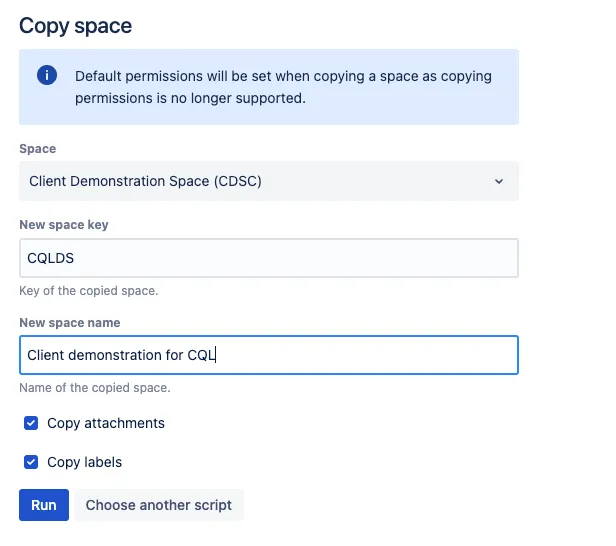
Copy a demonstration space
Select the template for Space. In this example, its Client Demonstration Space (CDS).
Enter the New Space Key, CQLDS for CQL Demonstration Space
Enter the New Space Name of Client Demonstration for CQL.
Check Copy Attachments and Copy Labels to copy everything into the new space.
Select Run.
Result
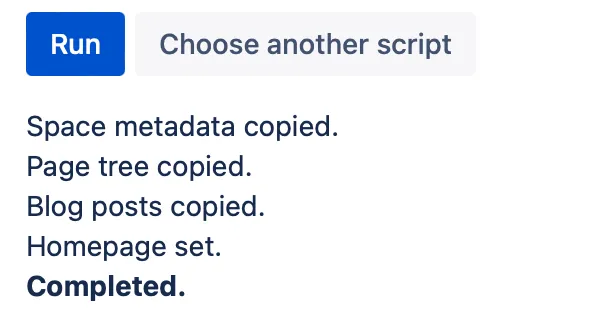
This results message appears: