
Create Page
Instructions for the Create Page macro.
The Create Page macro enables you to add new pages in the right place, with the right template, and a correctly formatted page title.
When you are editing or creating a page in Confluence Cloud, you can use ScriptRunner for Confluence Cloud to create a page.
Select Insert, then search for and add Create Page.
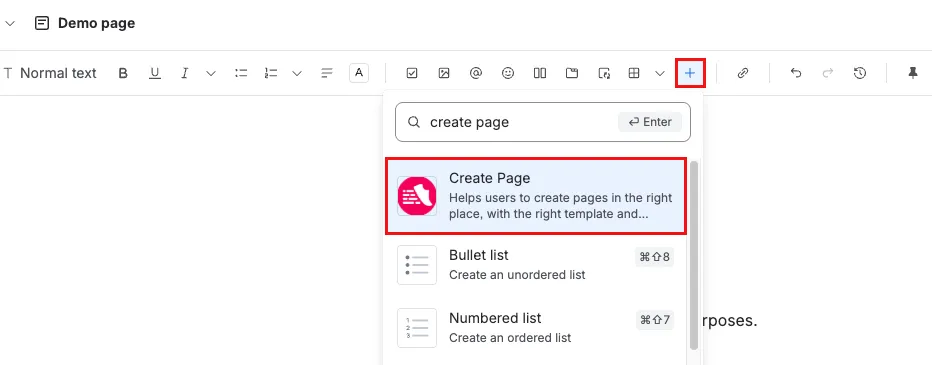
The Create Page Macro dialog opens.
- Give your new page a Title.Tip: Find available variables
Type a $ in the Title, Prefix, or Suffix field to see all available variables.
- Ensure the Target Mode field is set to your needs. This field determines whether the new page opens in View or Edit Mode. It's set to View Mode by default.
- Optional fields
- Parent page: this field defaults to $self, which indicates that the new page's parent is the current one from which it's being created.
- Source: This field lets you choose how the new page is pre-filled:
- None: creates a blank page
- From page: copies content and attachments from an existing page
- From template: starts the page from a global template.
- Prefix, Suffix, and Indent: these fields allow you to format the title of the new page as desired.
- Add space: add a space between the prefix, title and suffix.
- Button text: the words shown on the button that will create new pages when clicked.
- Open in new tab: specifies whether the newly created page will open in a new browser tab.
- Labels: specify labels that will be attached to the newly created page.
- Click Save. The macro saves and appears on the page in Edit mode.
- Update the page to see the macro as it will appear to others.
Edit the Create Page Macro
To edit the Create Page macro:
- View the page with the previously created macro in Edit mode.
- Click the Create Page macro settings and select Edit.
- Make your desired changes and click Save.