
Timeline View
The Timeline View enables you to visualize your project hierarchy over time. This makes it easier for you to understand schedules, dependencies, and progress at a glance. The Timeline view applies all the same grouping and filters as your table view. Our Timeline view also allows you to adjust the start and end dates for your work items, which means you can immediately see the impact of delays or proposed changes to deliverable dates.
Using the Timeline view
Click the Table/Timeline toggle above your table to open the Timeline view.
When the Timeline view opens, it displays the monthly view by default. You can change this to a weekly or quarterly view by selecting your preference from the box in the bottom right of the view.
When you hover over the timeline bar for a work item, Hierarchy for Jira displays an info box containing information about the work item in question.
The information box displays the following information:
- Title
- Work item ID
- Status
- Start date
- End date
- Time in days between start and end dates
- Estimate field - This displays information based on the field you select in Timeline settings.
You can change a work item's start date or end date by dragging the end of the timeline bar to the desired date. As you move the end of the bar, a tooltip displays to tell you how much you are moving the date by.
If you use the Copy Shareable URL function while in a Timeline view, the generated URL opens in Timeline view when accessed by another user. You can also use this to embed the Timeline view in Confluence. See Viewing Hierarchies Outside of Jira for instructions on how to do this.
Much of the functionality available in Table view is also available in Timeline view. This includes:
Timeline settings
You can configure the following settings for your Timeline view:
| Setting | Description |
|---|---|
| Start date field | This setting specifies which field work items use as their start date in your Timeline view. This dropdown is populated with a list of all date or datetime type fields. |
| End date field | This setting specifies which field work items use as their start date in your Timeline view. This dropdown is populated with a list of all date or datetime type fields. |
| Estimate display | This optional setting specifies which estimate field is included in the info box displayed when you hover over a timeline bar. You can select one from a list of hierarchy, time tracking, or child issue fields. |
| Estimate summary | This optional setting specifies the aggregation method used when displaying the estimate field in the info box. The options available are None, Roll up, Sum up, Min, or Max. You can read more about how Roll up and Sum up aggregation works in Column Aggregation. |
Milestones
You can create milestones within your timeline view. A milestone is a task that must be completed by a given date. Milestones are represented by a diamond within your timeline view.
You can turn a work item into a milestone by giving it the same start date and end date. You can change the start date and end date by either opening the work item and changing the dates or by dragging the ends of the work item in the timeline view to change the dates.
You can add a milestone to a work item without an existing timeline bar in your timeline view by right-clicking to open the context menu and selecting Add milestone from the menu displayed.
Once you've created a milestone, you can change its date by dragging it to the desired date in your timeline view.
Baseline comparison
The timeline view can also display a baseline for each work item. The baseline is the planned start and end date for a work item, and showing it on your timeline view makes it easy for you to visualize which work items have slipped behind schedule without having to open multiple views or tabs. The baseline for each work item is represented by a gray bar displayed beneath the main timeline bar, with a dotted line connecting the baseline bar to the timeline bar for that work item.
If you hover over the baseline bar, the start and end dates for the baseline are displayed in the header row of your timeline view. By default, the baseline comparison is turned off, and the Target start and Target end fields are used to define the baseline. You can switch on the baseline and define which fields are used to determine the baseline from the Timeline page in the Settings window.
| Setting | Description |
|---|---|
| Baseline mode | This toggle button indicates whether the baseline bar is displayed on your timeline view. |
| Baseline start date field | This setting specifies which field work items use as the start date for the baseline bar in your Timeline view. This dropdown is populated with a list of all date or datetime type fields. |
| Baseline end date field | This setting specifies which field work items use as the end date for the baseline bar in your Timeline view. This dropdown is populated with a list of all date or datetime type fields. |
Your baseline configuration settings are saved when you save your view or save it as a new view. If you change views without saving, the baseline configuration changes are lost.
Critical scope
Critical scope refers to the parts of a project's scope that are essential for its success. Hierarchy for Jira enables the easy identification of work items that you have identified as critical to your project. It even allows you to create a view that displays only the work items within your critical scope.
Any work items you identified as critical are displayed with a red neon border.
You can configure your critical scope settings from the Timeline page of the Settings window.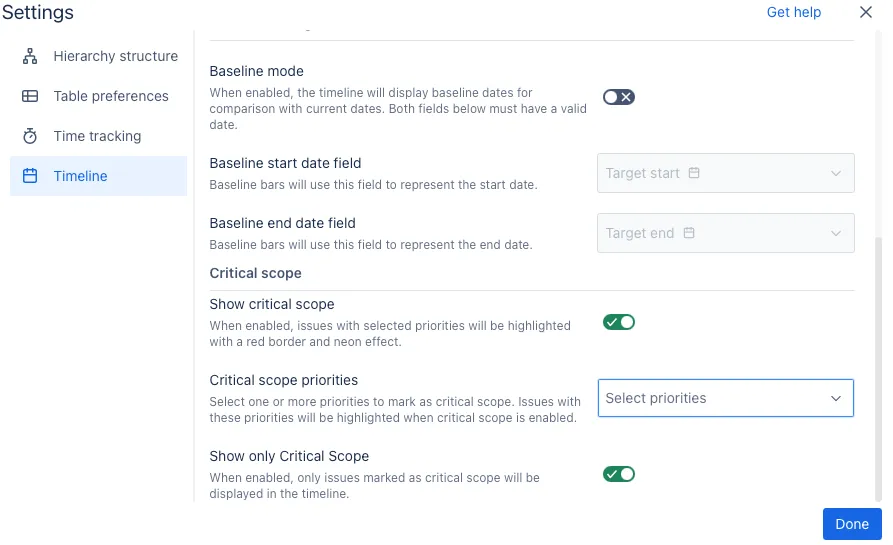
| Setting | Description |
|---|---|
| Show critical scope | This toggle button indicates whether critical scope work items are highlighted in your timeline. |
| Critical scope priorities | This field determines which priorities mark work items as being within critical scope. You can select multiple priorities, if desired. The dropdown is populated with all of the priority settings available to work items in your project. |
| Show only critical scope | When this toggle is enabled, only items identified as within critical scope are displayed on your timeline. |
Your critical scope configuration settings are saved when you save your view or save it as a new view. If you change views without saving, any critical scope configuration changes are lost.
Dependency lines
Dependency lines within your timeline view show which work items are blocking other work items and can help you prioritise which work items should be addressed first to remove them as blockers. If the end date of a work item is later than the start date of its dependent work item, the dependency is shown in red to indicate that it is a blocker.
You can create a blocks or a blocked by dependency line in your timeline view without having to open either of the work items in question. When you hover over a timeline bar for a work item, you can see a gray dot on each side of the timeline bar. The gray dot to the left of the timeline bar creates a blocked by dependency line with the work item you drag it to. The gray dot to the right of the timeline bar creates a blocks dependency line.
You can remove a dependency line by hovering over the line and clicking the Unlink work items button in the information box displayed.
Change colour scheme
| Status | Colour |
|---|---|
| To do | Grey |
| In progress | Blue |
| Done | Green |
To change the colour of a timeline bar for a work item, right-click on the timeline bar and select the colour you want to use from the options presented.
If you change the colour of a timeline bar for an epic, that changes the colour associated with that epic in Jira.
Clicking on the white box with the red line through it reverts to using the default colour for the timeline bar.
Export image
You can export a copy of your Timeline view for use in other applications.