
Egress Firewall Overview
A guide to using, managing, and approving requests in the Egress Firewall.
What is the Egress Firewall?
The Egress Firewall decides which external services a team's scripts may call. Every outbound request from ScriptRunner Connect, whether it goes through a connector or straight through the Fetch API, is checked against the team's allowlist. If the destination is not on the list, the firewall blocks the request, and the script receives an error indicating what was blocked and who can fix it.
Types of entries
| Entry | What it allows | Where you add it |
|---|---|---|
| Connector | Requests through the API Connection. | From the that uses it, or from the tab. |
| Destination | Fetch API requests to a single hostname, such as api.example.com, over HTTP or HTTPS, on any port and path. | From the tab. |
Rules for destinations:
Enter a hostname or a full URL. Only the hostname is kept, so
https://api.example.com/v2/usersandapi.example.comare the same entry.HTTP and HTTPS to the same hostname are a single entry.
Subdomains are separate entries. Allowing
example.comdoes not allowapi.example.com.Wildcards are not supported. Add each hostname on its own.
Only HTTP and HTTPS destinations are allowed.
Where to access
Access the Egress Firewall tab from .
The page has three parts:
The team's connection allowance, shown as
N of M connections used, or as unlimited on plans without a cap.Connectors
Every connector the team has allowed or has a pending request for, with who asked and who approved. A connector that is allowed but no longer attached to any API Connection is marked No longer used in this team. Revoke it to free up a slot.
Destinations
Every Fetch API hostname the team has allowed or requested, with the same detail.
Actions available by role
| Action | Member | Admin and Super Admin |
|---|---|---|
| View the Egress Firewall tab | Yes, but only connectors used in workspaces you can access, plus destinations you requested yourself. The connection count covers the whole team regardless. | Yes, everything in the tab is viewable. |
| Request for a connector or Fetch API destination | Yes. It is queued as awaiting approval, and every admin gets notified by email. | Yes. Admins get both options; Add to allowlist grants approval immediately. Request approval queues it as a pending request instead, which is useful when the team is at its limit, and you want it on record for later. |
| Approve or reject a request | No | Yes |
| Revoke a connector or remove a Fetch API destination | No | Yes |
Allow a connector while setting up an API connection
When you attach a connector to an API Connection, the screen displays an Egress Firewall status with one of three states:
| Status | Meaning |
|---|---|
| Allowed | Requests through the attached connector go through. |
| Waiting to be approved | Access has been requested. Requests remain blocked until an admin approves the connector. |
| Not allowed | Requests are blocked. |
If the connector is Not allowed, what displays depends on your role:
Admins and Super Admins see the Add to allowlist option, which, when pressed, adds the connector to the allowlist immediately.
Members see the Request approval option, which, when pressed, requests approval. The connector stays in the waiting for approval state until approved by a team admin.
The Workspace Resource Tree flags affected API Connections with Blocked by the Egress Firewall or Awaiting Firewall approval badges, so you can easily spot blocked connectors.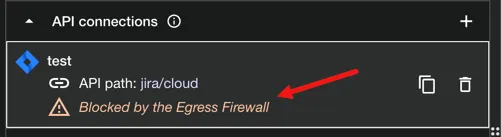
Allow a Fetch API destination
Go to .
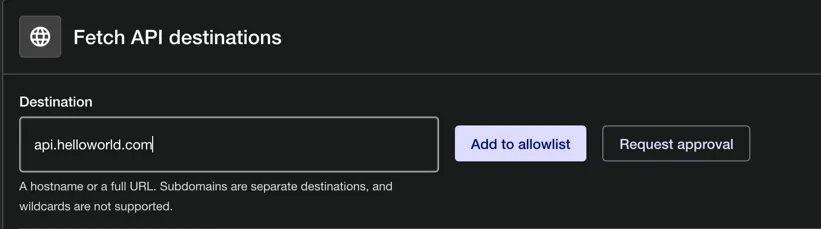
Type the hostname or URL for your script calls, for example api.example.com, in the Destination field.
Admins can click Add to allowlist. Members can use the Request approval option.
Connections allowance
Each allowed connector
Each allowed Fetch API destination
Pending requests are not counted against your allowance. Neither are connectors that are attached to an API Connection but not allowed.
To see how many connections you're currently using and what exactly your allowance is spent on, navigate to . There you'll see information on Connections used and specific details in the What is using your connections section.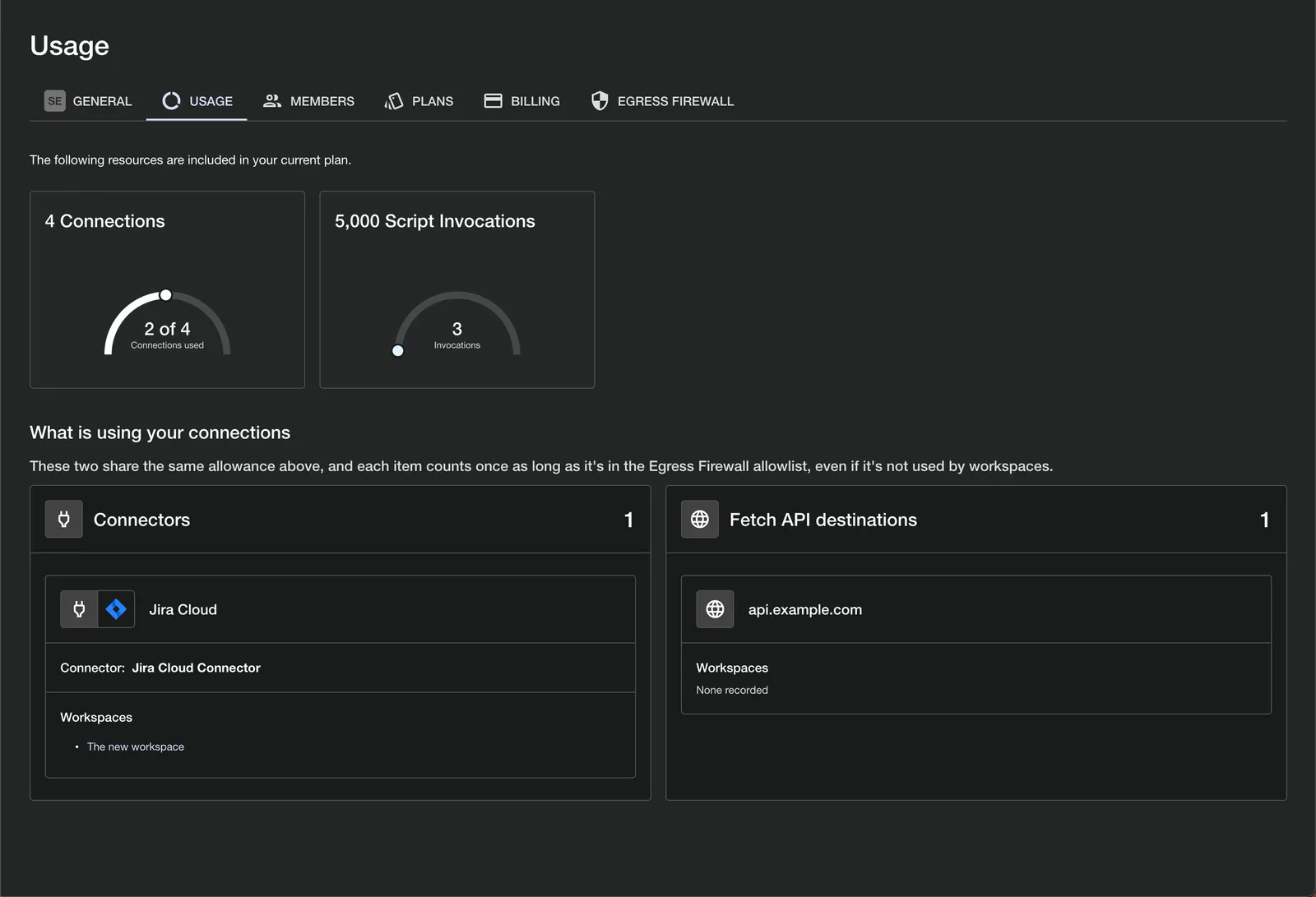
Once your team has reached the connection allowance limit, Admins cannot add or approve anything new. The buttons for approving on the Egress Firewall tab are disabled and a message about hitting the limit is shown. All connections already allowed keep working. To allow a new connection, revoke a previously approved entry or upgrade your plan. Members can still submit requests and Admins can approve once a slot is free.
Request approval as a Member
Anything requested by a user designated as a Member shows up in the Egress Firewall tab with an Awaiting approval badge and the name of the user who made the request.
When a request is made, each Admin and Super Admin receives an email. The subject reads APPROVAL REQUIRED: enable outbound requests to <destination> in the <team>, and there is a direct link to the Egress Firewall page in the body of the message.
A pending request costs nothing. It doesn't count toward a team's connection limit, so you can request a new allowance even if the team has already hit the limit. Until approved, requests to that destination, or through that connector, are blocked.
(Admins) Approve or reject a request
Go to . Pending items show the Awaiting approval badge.
Click Approve to allow the connection across the team or Reject to drop the request. After rejection, the connection cannot be used and must be requested again if approval becomes desired.
The Approve button is disabled when the team has filled the slots within its allowance. See the Connections allowance section for more details.
(Admins) Revoke or remove an entry
For a connector:
Click Revoke. Scripts in the team stop being able to make requests using this connection immediately. The connector stays attached to its API Connections, so it can be allowed again later without any workspace-level setup.
For a destination:
Click Revoke. Scripts can no longer reach that hostname through the Fetch API. This can take up to a minute to take effect.
Both of these actions require confirmation. Each item revoked frees a slot in the allowance.
What a blocked request looks like
Request blocked by the team's Egress Firewall.
api.example.com is not on the allowed destinations list. A team admin can allow it under Team Settings → Egress Firewall.
For an unapproved connector, the second line names the connector and notes whether it is disallowed or still pending approval. The script itself does not require a change. Once the access is approved, the same request goes through as expected.
Moving a workspace to another team
Egress Firewall allowlists belong to the team, not individual workspaces. When you transfer a workspace to another team, its firewall permissions do not transfer with it.
What happens in the new team:
Outbound requests are blocked initially.
Scripts cannot make outbound calls through connectors or Fetch API destinations until they are allowed in the new team.
Re-approval is required.
A team admin must add the required connectors and Fetch API destinations to the new team's allowlist (or a member must submit approval requests).
Allowance impact
Approving these entries uses available slots in the new team's connection allowance.
What happens in the old team:
Entries remain behind
Existing allowlist entries stay in the old team and continue to count toward its connection allowance.
Orphaned connectors
Any allowed connector no longer attached to a workspace in the old team is flagged as No longer used in this team.
Reclaiming slots
An Admin in the old team should navigate to and revoke unused connectors or destinations to free up connection allowance.
When the Egress Firewall feature was released, the ScriptRunner Connect team pre-approved every connector a team's API Connections already used and every destination its scripts had recently called. This is to ensure existing integrations continue to work.
Some teams will end up going over their plan connector allowance because of this. Everything already allowed will continue to work; however, no new connectors or Fetch API destinations can be approved until the team is back under the limit or upgrades.
If a destination your script uses was missed, an admin can add it, or you can request it, as described above. Please contact our support team if you need assistance approving your first few.
FAQ
- Can I allow a private or internal hostname?
- Only destinations reachable from the internet work. Expose the service through your own network first, then allow its public hostname.
- Do I need to redeploy after an approval?
- No, the connector still only talks to the service it's configured for.
- Where is the history?
- Every addition, approval, rejection, and removal is recorded under as
team.egress_firewall.*actions.