
Access Policies
An access policy is a predefined set of permissions. It decides what something acting on your behalf may do in ScriptRunner Connect and which external API endpoints the scripts it triggers may call.
Access policies do two jobs:
They limit API keys. When you create an API key, you can limit its access to a predefined set of permissions from a policy, rather than granting it full access. A script, an integration or a tool that uses the key then gets only the access it needs.
They govern AI agents. This covers the embedded agent, the AI agent built into the web app, and AI agents you run yourself with an API key, such as Claude Code, Codex or OpenCode on your computer. An agent starts with limited access and requests more as the work requires it. You approve or decline each request; approvals expire automatically, and an agent can never change a policy.
Key terms
- Permission
- One action, such as Update script, together with where it applies: which teams, workspaces, environments and items.
- Built time access
- What the key or agent may do in ScriptRunner Connect itself, such as creating scripts or changing event listeners.
- Runtime access
- Which external API endpoints the scripts that the key or agent triggers may call while they run.
- Limited
- A limited API key or agent task (a conversation with the embedded agent) is subject to a policy.
- Unlimited
- An unlimited one can do anything you can do yourself, except a few management operations that the REST API does not offer.
- Access request
- An agent asking you for permissions that its policy does not explicitly grant.
- Approval
- A permission you allowed in an access request. Approvals add to the policy for a short time and never change the policy itself.
Where to find access policies
Click your name in the bottom-left corner of the screen, then click API Keys, then open the Access Policies tab.
The list starts with the two built-in policies, marked Built-in · locked, followed by your own policies in name order.
From here you can:
Create a policy with New policy.
Edit or Delete one of your own policies.
Duplicate any policy, including a built-in one, to start a new policy from it.
Each policy has two tabs, Build time access and Runtime access, which are described below.
Access policies belong to you and are not shared with your team. They can be created and changed only in the web app. Agents can read your policies but never change them.
The built-in policies
Every user has two built-in policies.
| Policy | What is allowed | How its used |
|---|---|---|
| Read-Only (default) | Listing and viewing almost everything in the current team: workspaces, environments, releases, packages, scripts, event listeners, test payloads, event queues, API connections, scheduled triggers, connectors, the README, the team's invocation log and the egress firewall. Environment parameters are listed by name only. | The safe starting point for an agent. A new agent task uses it unless you pick another policy. |
| Read-Only + Logs | Everything in Read-Only, plus Read invocation console logs, Read invocation HTTP logs and Read event payloads. | Troubleshooting. When you ask the agent to troubleshoot an error from the console or the invocation logs, the task starts with Read-Only + Logs. |
Read-Only does not allow:
Changing, deleting or running anything
Reading console logs, HTTP logs or event payloads, which can hold customer data
Reading environment parameter values
Seeing team members' names and email addresses, or the audit log
Any outbound calls from scripts, because it has no runtime rules.
Logs and payloads are handled by a separate built-in policy because they often contain customer data and secrets. Give an agent access to them only when it is troubleshooting.
Both built-in policies are locked. To change one, Duplicate it and edit the copy. A built-in policy automatically includes new read-only features as ScriptRunner Connect adds them. A copy does not.
Who uses an access policy?
The embedded agent
You choose the agent's access in the task's Security menu, before you send the first message:
Limited access is on by default. The agent starts with the permissions defined in the chosen policy and asks you for more when it needs them.
Access policy chooses the policy. The default is Read-Only. A new task starts with whatever you picked last time in the browser.
Neither setting can change once the task has started. To use a different policy, start a new task.
Every message you send starts a new run of the agent, and each run takes a fresh copy of the policy as it is at that moment. If you edit the policy during a task, the change applies from your next message. If you delete the policy, the task falls back to Read-Only.
If you disable Limited access, the agent can act as you in every team you are in, doing almost everything you can do yourself. The Security button turns to the warning colour to remind you.
API keys and your own AI agents
When you create an API key, choose either:
Unlimited: the key can do anything you can, or
Limited to these permissions.
For a limited key, use Copy from policy to fill in the permissions from one of your policies. You can then adjust them before creating the key.
A limited key keeps its own copy of the permissions for its whole life. Editing or deleting the policy later does not change the key. To change what a key may do, create a new key.
When a limited key expires, scripts it triggered also stop making outbound calls.
How a permission is scoped
A permission names an action and then narrows down which resources it applies to, step by step:
team → workspace → environment → item
At each step, you may choose any, or pick specific teams, workspaces, environments or items, such as a particular script or connector. Only the steps relevant to the action are displayed. For example, Create workspace stops at the team, and Read environment parameter values stops at the environment.
Current team
A policy can use current team instead of naming a team. What that means depends on who uses the policy:
In an agent task, the current team is the team the task belongs to: the team selected in the top-left corner of the web app.
For an API key that belongs to no team, current team means any team you are a member of. The Copy from policy field reminds you of this. If a key is meant for one team only, replace current team with that team before you create the key.
Wide scopes are flagged
The editors and the approval dialog highlight scopes that reach further than they might look: any at any level, and environments whose names suggest production, such as names containing "prod" or "live". Check these carefully before you save or approve.
HEAD and non-HEAD environments
An environment with no release deployed into it runs the latest saved version of the workspace. This is called a HEAD environment. An environment running a release is a non-HEAD environment.
All HEAD environments in a workspace share a single copy of the workspace. A change made in one of them affects them all. So, a permission for one of these changes is needed in every HEAD environment of the workspace, not only the one you are working in:
Creating, updating or deleting a script
Creating an event listener or an event queue
Deleting an event listener, an event queue, a scheduled trigger or an API connection
Changing an event listener's script, event type, event queue or grouping
Changing a scheduled trigger's script
Changing an event queue's name or eviction policy
Changing an API connection's path or package
Updating the README file.
For example, an agent testing a script change in a HEAD Development environment also needs the permission in a HEAD Production environment, because they share the same scripts. This applies only while the production environment is still running the HEAD version, which should be the exception: production environments normally run a release.
Each environment keeps its own copy of the rest, so changing these needs the permission in that one environment only:
An event listener's connector, URL path and disabled state
A scheduled trigger's schedule and disabled state
An event queue's disabled state
An API connection's connector
Environment parameters.
Test payloads are the exception. A test payload belongs to its event listener, which is shared across all environments, including non-HEAD environments. Creating, changing or deleting a payload changes it everywhere, even though the permission names a single environment.
Color coding
Every permission has a color that indicates how much trust it requires. The same colors appear in the policy editor, the approval dialog and the task's access history.
| Color | What is covered | How to react |
|---|---|---|
| 🟢 Green | Listing, viewing and creating | Usually safe to approve. |
| 🟡 Yellow | Changing and running things: updating, running scripts, replaying or stopping invocations, deploying releases. Also seeing other people's details and data: team members, audit logs, connector sharing, console and HTTP logs, event payloads. | Read what it covers and where before approving. |
| 🔴 Red | Deleting, sharing a connector, and the special permissions below | Stop and think. Approve only when you understand why the agent needs it. |
Build time access and runtime access
Each policy has two parts, each on its own tab.
Build time access
Build time access refers to what the key or agent can do in ScriptRunner Connect via the REST API, such as reading workspaces, creating scripts, deploying releases, and so on. Everything in the sections above is build time access.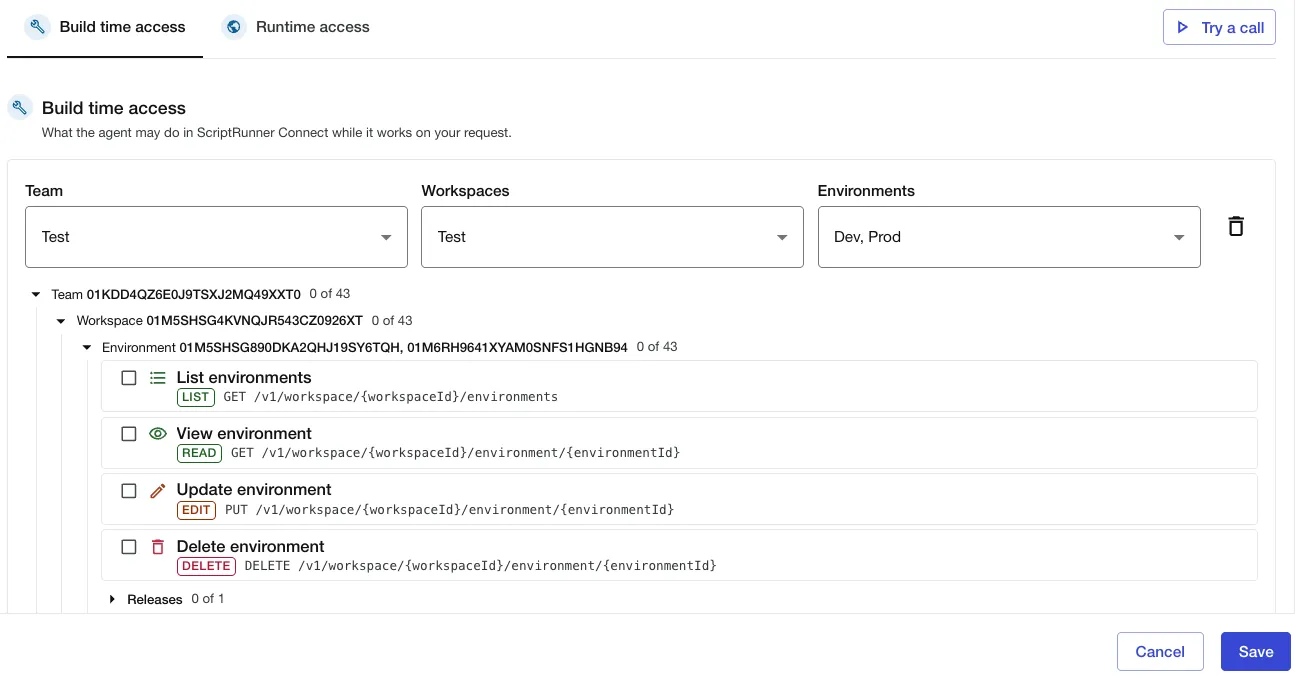
Runtime access
Runtime access refers to the external API endpoints that scripts triggered by the key or agent may call while running. Nothing is allowed unless a rule allows it. With no rules, these scripts cannot make any outbound calls. Read-Only has no rules.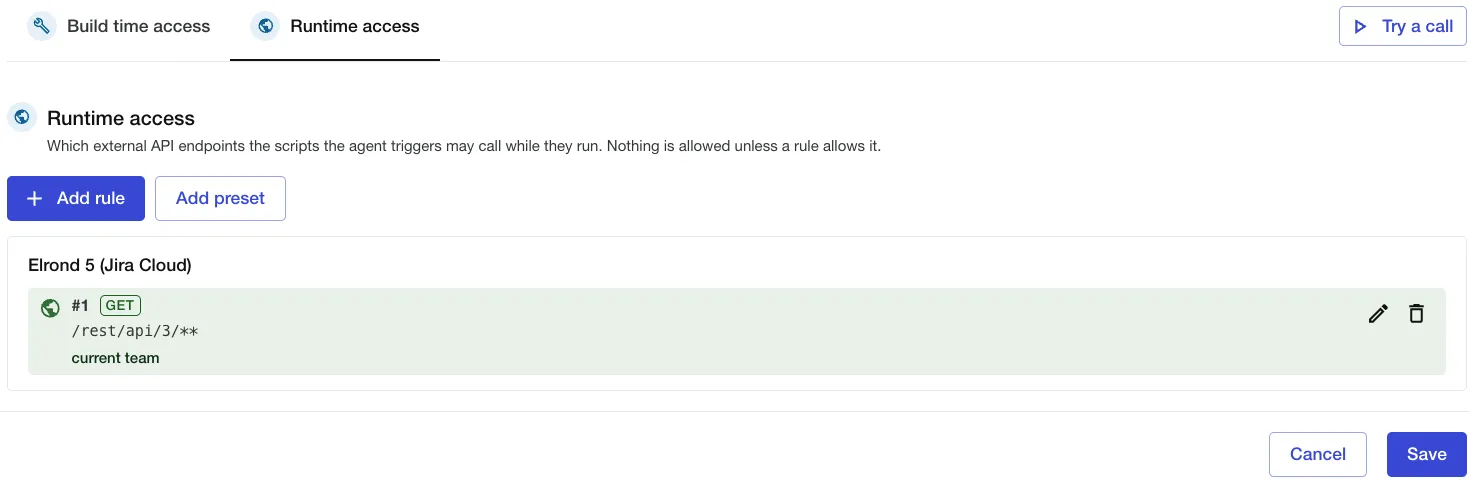
A runtime rule says:
Where to: one or more connectors, or Direct fetch (no connector) with the hosts allowed.
HTTP methods: such as GET or POST, or any method.
URL paths: the paths allowed on that connector or host.
For a GraphQL endpoint, optionally, which kinds of operations (query, mutation, subscription) and which fields are allowed.
Where it applies: the teams, workspaces and environments a script has to run in for the rule to apply.
Writing paths and hosts:
A path is exact unless it uses a pattern.
*matches within one segment (/api/v1/user*matches/api/v1/usersbut not/api/v1/users/1), and**matches any number of segments (/rest/api/3/**).A segment written in curly brackets, as API documentation often shows paths, works like
*on its own:/rest/api/3/issue/{issueIdOrKey}matches/rest/api/3/issue/ABC-1.Paths are case-sensitive and leave out the query string.
A host is
api.example.com,*.example.comfor any subdomain, orapi.example.com:8443with a port.*on its own means any method, path, connector or host.
How wide to make a rule depends on what the call does. For reads, a broad rule like GET on any path is usually fine. For changes and deletions, name the exact paths so you can see which data a script may change or remove. If an agent asks for a broad rule where the paths matter, decline the request and ask them to narrow the scope of the paths.
GraphQL endpoints take every operation as a POST to the same path. A rule allowing POST to /graphql, therefore allows mutations as well as queries. Use the GraphQL option to allow only queries.
Other protocols carried over HTTP, such as SOAP, have no filtering of their own. A rule matches their calls only by connector or host, HTTP method and URL path.
Every outbound call is checked at the moment it is made, against the access as it is then. When you revoke an approval, an approval expires, or the API key is deleted, a script that is already running loses that access from its next call.
Which script runs are held to runtime rules
Runtime rules apply to scripts that a limited API key or agent triggers by running a script or replaying an invocation. They do not apply to:
Scripts that a scheduled trigger runs on its schedule.
Scripts that an event listener triggers when its webhook is called, or the connected app sends an event. That is why the embedded agent has a separate Allow triggering externally setting, which is off by default. Leave it off, and turn it on only when the agent needs it to validate its work.
Scripts triggered with an unlimited API key.
That is why turning on a schedule and seeing a webhook URL are special permissions, described next.
Special permissions
These permissions guard something that no ordinary create, change or delete covers. All of them are red, so review them carefully before you grant them.
| Permission | Why its separate | When the permission is disabled |
|---|---|---|
| Read environment parameter values | Parameters can hold passwords, tokens and other secrets. The value of a Password parameter is never displayed, even with the permission. Not every secret fits in a Password parameter, though, so other types of parameters may hold secrets too. | Parameters are listed by name, without their values. Setting a value still works with Update environment parameter. |
| View event listener webhook URLs | Anyone who has an event listener's URL can trigger its script and still can after the permission ends. | Event listeners are displayed without their URLs. You can still see the URL yourself in the web app. |
| Enable scheduled triggers | Scripts triggered on a schedule are not held to runtime rules. | New scheduled triggers are created in a disabled state, and existing ones cannot be turned on until a person enables them. The permission is also needed to change the script that an enabled schedule triggers and to deploy a release to an environment where a schedule is enabled. |
| Approve egress entries automatically | Approving an egress firewall entry allows traffic to leave your team. | A new egress firewall entry, for example, for a newly attached connector, waits for a team admin to approve it. |
| Create temporary SFTP access | It hands out an SSH private key that works from any IP address for a day. | No temporary SFTP access can be created. |
| Commit temporary SFTP access | Committing can bundle the uploaded files into a new release and deploy it, which changes the code those environments run. | Uploaded files cannot be committed. |
Granted implicitly
Lock workspace for editing is never chosen directly. Any permission to create, change, delete or run something in a workspace includes it.
Sensitive, but not special
These are yellow, but they expose people's details or customer data, so read them before approving:
List team members and View connector sharing return names and email addresses.
Read audit log shows who did what, with their IP addresses, across every workspace in the team.
Read event payloads, Read invocation console logs and Read invocation HTTP logs can contain customer data. HTTP logs can also contain credentials.
Access is checked on every REST API call
An access policy is enforced by the ScriptRunner Connect REST API itself. It applies to whatever uses the key: the agent in the web app, an agent on your computer, a script or another tool.
When a call requires a permission that the key lacks, the call is refused, and the refusal lists the missing permissions.
Lists work differently. A list leaves out what the key may not see and answers as normal. A shorter list than you expect may be a filtered one.
Permissions and REST API calls do not always match one-to-one:
One permission can cover several calls.
For example, View workspace covers reading a workspace by its team, by its ID and reading its lock. Create script also covers the bulk upload that tools use to push many scripts at once.
Some actions need several permissions.
Pushing scripts in bulk needs Create script and Update script for the whole environment. Copying a workspace needs every view permission on the workspace being copied, including Read environment parameter values in its default environment. Creating a release that is deployed straight away needs Deploy release as well as Create release.
A few calls are allowed for every key, regardless of the policy. They read who you are, the available apps and templates, your access policies, and your list of permissions, and then let an agent request access.
To see exactly which calls a permission covers, use Try a call.
Try a call
Try a call checks a call against the permissions you are editing, using the same check the REST API uses. Nothing is sent, and nothing changes. The button is available when you create, edit or view a policy, and when you create a limited API key.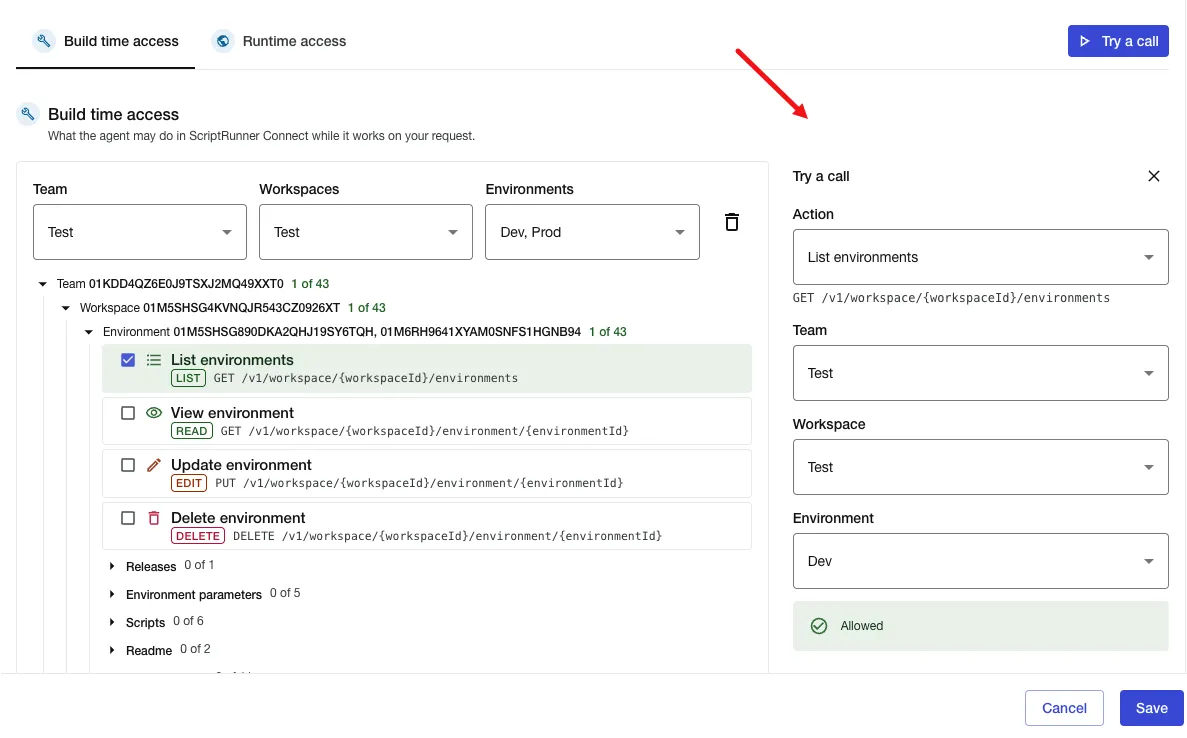
On the Build time access tab:
Pick an action, a team, and where the action needs them, a workspace, an environment and an item ID. Leave the item ID empty to mean any item. The answer is Allowed or Denied. Under the action, it lists the REST API action it covers. The team you pick stands in for current team.
On the Runtime access tab:
Pick a connector or Direct fetch (no connector), a method and a path or URL. For methods that send a body, you can add one to check GraphQL rules. The answer names the rule that allows the call or says why it is refused. If the allowing rule applies only in some teams, workspaces or environments, the answer says so. Runtime Try a call is available while you create or edit a policy, not while you only view one.
When an agent asks for more access
How a request works
The agent finds it needs a permission that its policy does not grant. A well-behaved agent asks for everything a task needs in one go before it starts. That is not always possible: an agent cannot request permissions for something that does not yet exist. For example, it first requests permission to create a workspace, and only once the workspace exists can it request permissions on the scripts and other resources inside it.
It sends an access request: a summary of the job and each required permission needed, with a reason.
In the web app, a dialog titled The agent is asking for more access opens.
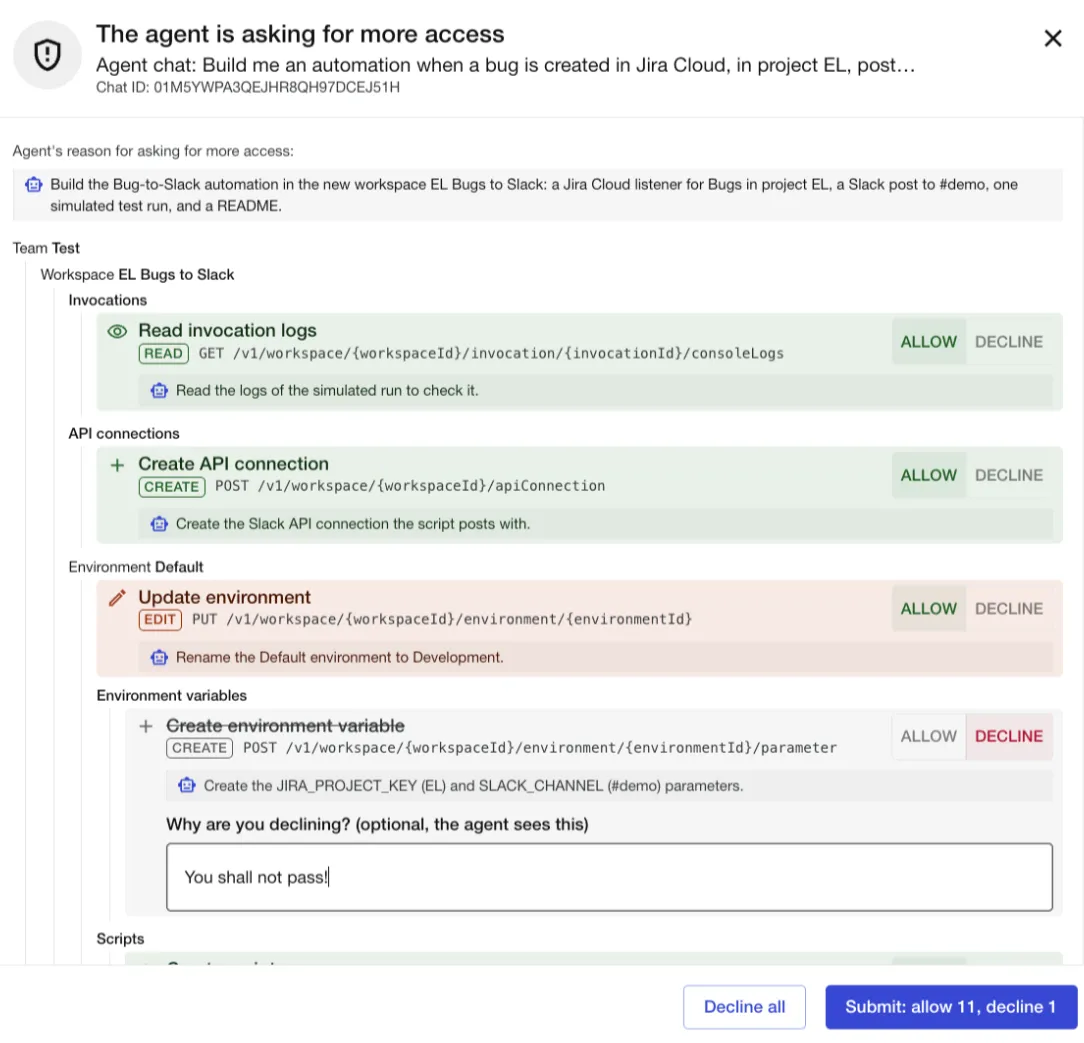 The agent also gives you a link to it in case you do not have the web app open.
Each item shows its colour, its scope and the agent's reason. Allow or decline each one, or use Decline all. When you decline an item, you can tell the agent why or what to do instead. The agent reads it.
Click Submit. The agent proceeds with what you allowed and adjusts its plan around what you declined.
Approving a request never changes the policy. Approvals sit on top of it for a short time.
An agent has at most one request waiting at a time. A new request from the same agent replaces the one still waiting. A request that nobody answers eventually expires, and the agent can ask again.
How long approvals last
Approvals last for one hour from your most recent approval. Each new approval moves all of that agent's approvals to one hour from then.
No approval lasts longer than eight hours from the start of the agent's session. For the embedded agent, that is the task's first message. For your own agents, it is their first access request. After that, the agent is back to its policy alone and has to ask again.
When approvals expire, the agent keeps working with its policy and can ask again.
Each agent has its own approvals
In the web app: approvals are associated with the task. They carry over from one message to the next until they expire. Each task maintains its own approvals, and every message the agent handles uses a new, temporary API key.
For agents you run yourself: approvals belong to that agent's session, not to the API key. Two agents using the same key each get their own approvals, displayed as agent #1, agent #2 and so on in the key's access details. The ScriptRunner Connect CLI keeps sessions separate when possible. How well that works depends on the agent's shell environment, so treat the separation between agents on one key as best effort.
Checking and revoking access
In an agent task, a line shows the task's current access, for example:
Limited access: Read-Only + 2 approvals until 14:32 · View access · Revoke
View access opens Access for this chat, a history of every run's starting permissions and every request in the task, day by day.
Revoke ends every approval in the task straight away.
To manage an API key, open its access in the API Keys list to view each agent's approvals and revoke them if desired.
When you stop an agent's run, its unanswered requests are withdrawn. When you revoke approvals, scripts already running lose that runtime access from their next outbound call.
What an agent task asked for and what you approved are recorded in the team's audit log.
Best practices
- Start agents on Read-Only.
- Give agents the access permissions they need through requests you can read and approve.
- Turn repeated requests into a policy.
- When the same requests keep coming back, open Access for this chat and click Save as new policy. The new policy includes the task's policy and everything you approved for the task, leaving out anything you revoked.
- Make small policies for the jobs you repeat.
- Policies like Build in Dev, scoped to one team and to the environments the job really needs.
- Give agents and tools a limited API key.
- Include an expiration date. Do not give an AI agent an unlimited key.
- Read the red items and production environments carefully.
- Always review before granting approval.
- In the embedded agent, leave Allow triggering externally disabled when access is limited.
- That Security menu setting lets the agent call your event listeners' URLs. The scripts that those calls trigger are not held to the policy's runtime rules, and the Security menu warns you about this when both are on.
Limits
| Limit | Value |
|---|---|
| How long approvals last | 1 hour after your most recent approval |
| Longest an agent's approvals can last | 8 hours from the start of the agent's session |
| Access requests per hour | 20 per API key, or per task for the embedded agent, and 100 per user across all keys and tasks |