
Manage Color Palettes
When all your content creators use different colors for their pages, it can make your Confluence site look unconnected and confusing. Color management makes creating content that looks and feels like it belongs together easier. It allows admins to create color palettes site admins can create global color palettes for use in every space. Global palettes can be good for things like brand or organizational colors. Space admins can create space color palettes for use in the space they administer. These can be good for team or product colors. These color palettes are offered as options inside our macros that have color options.
The macros that have color options are:
Manage Global Color Palettes
In the Manage Color Palettes screen, you can add, edit, share, unshare, and delete color palettes. To get to this screen:
Create a New Global Palette
You can create as many palettes as you need.
Giving a descriptive name can help your users know when to use the palette eg. Highlight Colors, or Background Colors.
You can save a palette without sharing it if it's not yet ready for use.
Share/Unshare a Global Color Palette
From the Manage Color Palettes screen, you can easily see which palettes are shared with users and which are not. To add or remove a palette from the list users see inside our macros, select the edit icon next to the palette you want to update.
Edit an Existing Global Palette
Delete a Global Palette
Manage Space Color Palettes
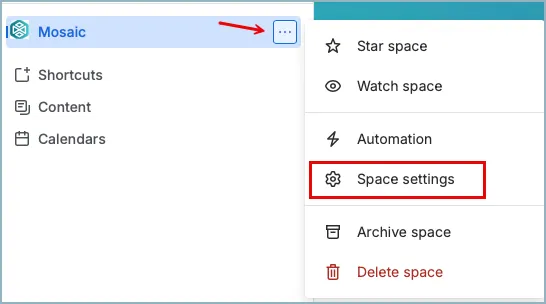
In the Macro Colors screen, you can add, edit, share, unshare, and delete color palettes. To get to this screen:
- Select the menu button next to the space name and then click Space settings.
Create a New Space Palette
You can create as many palettes as you need.
You can save a palette without sharing it if it's not yet ready for use.
Share/Unshare a Space Color Palette
From the Manage Color Palettes screen, you can easily see which palettes are shared with users and which are not. To add or remove a palette from the list users see inside our macros, select the edit icon next to the palette you want to update.
Edit an Existing Space Palette
If you edit a color palette it will not change the colors of any macros made using the palette. It will only change the options offered to users when they next open the palette in a macro editor.
Delete a Space Palette
To delete a global color palette, click the menu button next to the palette you want to delete, then click Delete Palette.
If you delete a color palette it will not change the colors of any macros made using the palette. It will only remove the color palette from the options offered to users when they next open a macro editor.
Video Walkthrough
Watch our video walkthrough to see how to use Color Management.