
Plans and Licensing
Information on the available plans and how to license them to use the app.
Find the best way to use GitLab for Miro in your situation. Learn about plans, licensing, free trials, upgrades, limits, cancellation, and resuming service here.
To view plans in the GitLab for Miro app:
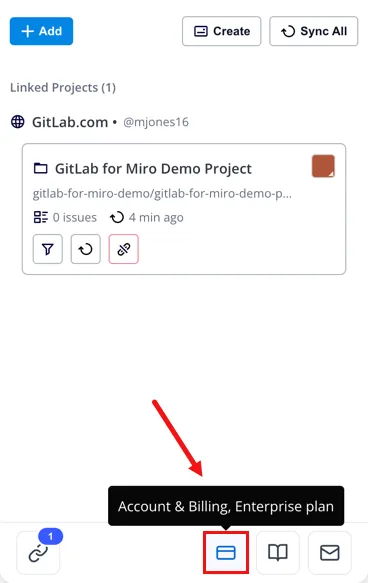
- Navigate to the Account & Billing page to view your current plan and project limit.
- Click View Plans.
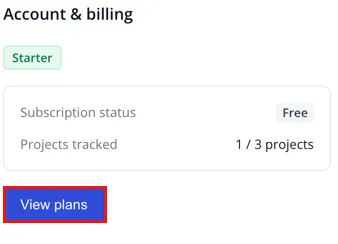
- The Plans screen opens, highlighting our available options.
GitLab for Miro plans
Descriptions of the available plans for the app.
Starter
Starter is our free plan and requires no subscription. Every team starts here.
Features of our Starter Plan:
Up to three linked projects per team
Link GitLab projects or targeted work item groups
Two-way work item sync with App Cards
Create GitLab work items from sticky notes.
No checkout needed. Use the app right away.
Business
The Business plan keeps you going when your team needs to sync more than three projects.
Additional features of our Business Plan:
Up to 35 linked projects per team
Everything in Starter, plus priority support
$1,200/year (annual billing) or $110/month (monthly billing)
Self-serve Stripe checkout — start directly from the app.
You can switch between annual and monthly billing at checkout; the pricing toggle is in the Plans view.
Enterprise
Enterprise is our plan for large teams or organizations with complex project needs.
Additional features of our Enterprise Plan:
Up to 200 linked projects per team
Custom pricing — no in-app checkout
Contact our Sales Team (email: miro-apps@adaptavist.com) to get started.
Plan comparison
| Plan | Price | Project limit | Free trial | How to get it |
|---|---|---|---|---|
| Starter | Free | 3 | — | Included by default |
| Enterprise | Custom pricing | 200 | 30 days (from Business only) | Contact our Sales Team |
| Business | $1,200/yr or $110/mo | 35 | 30 days, no card required | Self-serve checkout in the app |
Free trial
Information about the app's free trial options.
We offer a 30-day free trial of GitLab for Miro's paid tier options.
Who can start a free trial and when:
- Starter Plan teams - Trial the Business Plan free for 30 days.
- Active Business Plan subscribers - Get a free trial of our Enterprise Plan if your team wants to try an expanded project limit.
Trial the Business Plan
A Starter team can start a trial of the Business level two ways:
- From the Plans view - Navigate to the Account & Billing page and click View plans. From the Business Plan card, click the Start Free Trial button.
- A Start Free Trial option appears when hitting the project limit via the Limit Modal. Just click to get started.
Trial the Enterprise Plan
A team subscribed to the Business Plan can trial the Enterprise Plan for 30 days free of charge. A Business team can start a trial of the Enterprise level two ways:
- From the Plans view - Navigate to the Account & Billing page and click View plans. From the Enterprise Plan card, click Start Free Trial.
If your team is over the current plan's project limit, an inline banner appears in the panel with Upgrade and Manage projects options.Your existing App Cards stay on the board, but you cannot add new projects until you reduce the count or upgrade your plan.
Subscribe before the trial ends to keep your project access uninterrupted. Contact us at miro-apps@adaptavist.com to subscribe or ask any questions about the Enterprise Plan.
Project limits
Information about hitting a plans' project limit.
The project limit counts the total number of distinct linked entities on your team: project links and work item groups combined. Each unique GitLab project you link to and each work item group you create counts toward the limit.
The limit is enforced server-side. If an action would push you over the limit, the app shows the project limit modal before enabling the operation. Your options at that point are:
Start a free trial (if eligible)
Upgrade to the next plan
Remove an existing project link or work item group to free up a slot.
Multi-team licensing
Information on multi-team licensing for the app.
Each Miro team has its own independent license and project limit. There is no automated path to cover multiple teams under a single subscription.
If your organization needs to license multiple Miro teams, contact our Sales Team (miro-apps@adaptavist.com).
Upgrade, cancel, and resume
How to find additional information on actions regarding plans.
If you would like more instructions on opening the Plans view, starting a free trial, completing checkout, cancelling or resuming a subscription, see our Manage Your Subscription page.
FAQ related to billing
Frequently asked questions and answers related to billing.
Who manages the subscription?
Any member of the Miro team can start a trial or open the Plans view. Stripe checkout and the Salable customer portal track the user who completed the purchase. Only that user sees the Manage subscription button in the Account view (which opens the external billing portal for payment updates, invoices, and cancellation).
Can I cancel anytime?
Yes. Cancelling turns off auto-renewal, and your subscription stays active until the end of the current billing period. The Account view shows "Cancels on [date]". You can re-enable auto-renew before the period ends. See the Manage Your Subscription page.
What happens to my cards if I downgrade?
App Cards already on your boards are not removed. You lose the ability to add new project links or work item groups beyond your new plan's limit, but everything already on the board remains visible and syncs normally.
If a payment fails, what happens?
If a payment fails, you will see a banner in Account & Billing with a link to update your payment details.