Manage Boards
This page allows you to handle both your personal and shared boards. Activities such as viewing detailed information about the boards, navigating to the configuration settings, deleting boards, and creating new ones can be conducted. To navigate to a board, you can typically click on the name of the board.
Create Board
- Click on the Create Board button.
- Enter Name and Description.
- Select Create
Delete board
- Find the specific board that you want to delete.
- Click on the Delete button
- Confirm the deletion.
Configure Board
To configure a board, click on the "Configure" button to access the configuration settings for the board.
Sidebar
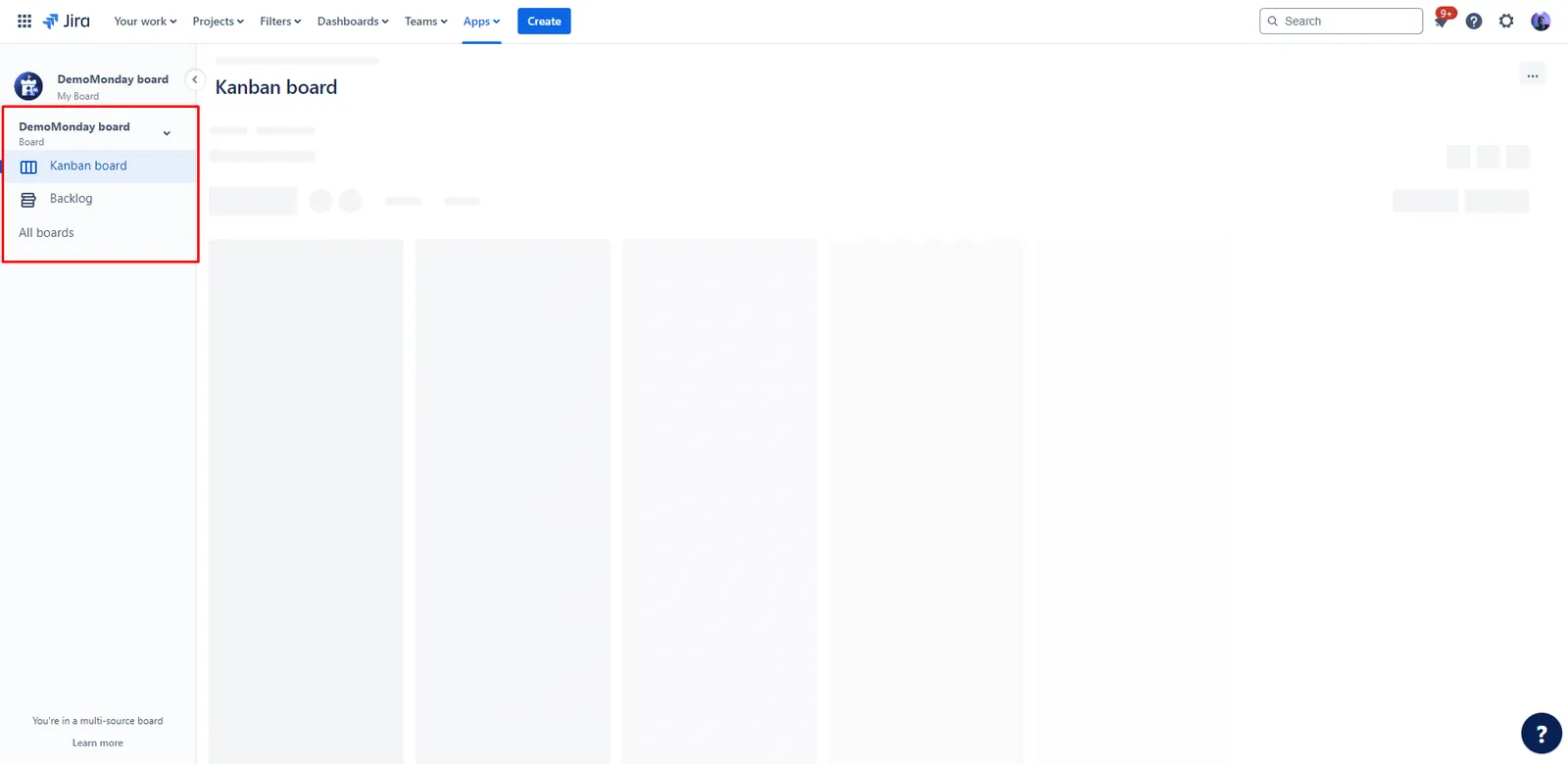
Navigate between available boards: The sidebar allows you to switch between different boards within monday.com Boards in Jira . Click on the name of the desired board in the sidebar to navigate to that specific board.
Create a new board: monday.com Boards in Jira may allow you to create a new board directly from the sidebar. Look for an option such as "Create New Board", click on it, and follow the prompts to set up a new board.
Navigate to the "All Boards" page: In addition to individual boards, the sidebar may include a link or option to access the "All Boards" page. This page provides an overview or listing of all the boards you have access to in monday.com Boards in Jira.
Switch between Kanban board and backlog: Options to toggle between the Kanban board and the backlog view are facilitated by the sidebar, permitting a smooth transition between the two views.